

How to start a project from a template in CoPort
Updated · 6 steps
Chapters
To start a project from a template in CoPort, open Projects, click Add Project, name the project, choose a template under From Template, pick the partner and priority, and click Create Project. The template's tasks are added with their due dates, so you can open the project and start working the plan.
Before you start
- A project template exists. See Build an onboarding template.
- The partner already exists. See Add a partner.
Steps
1. Go to Projects
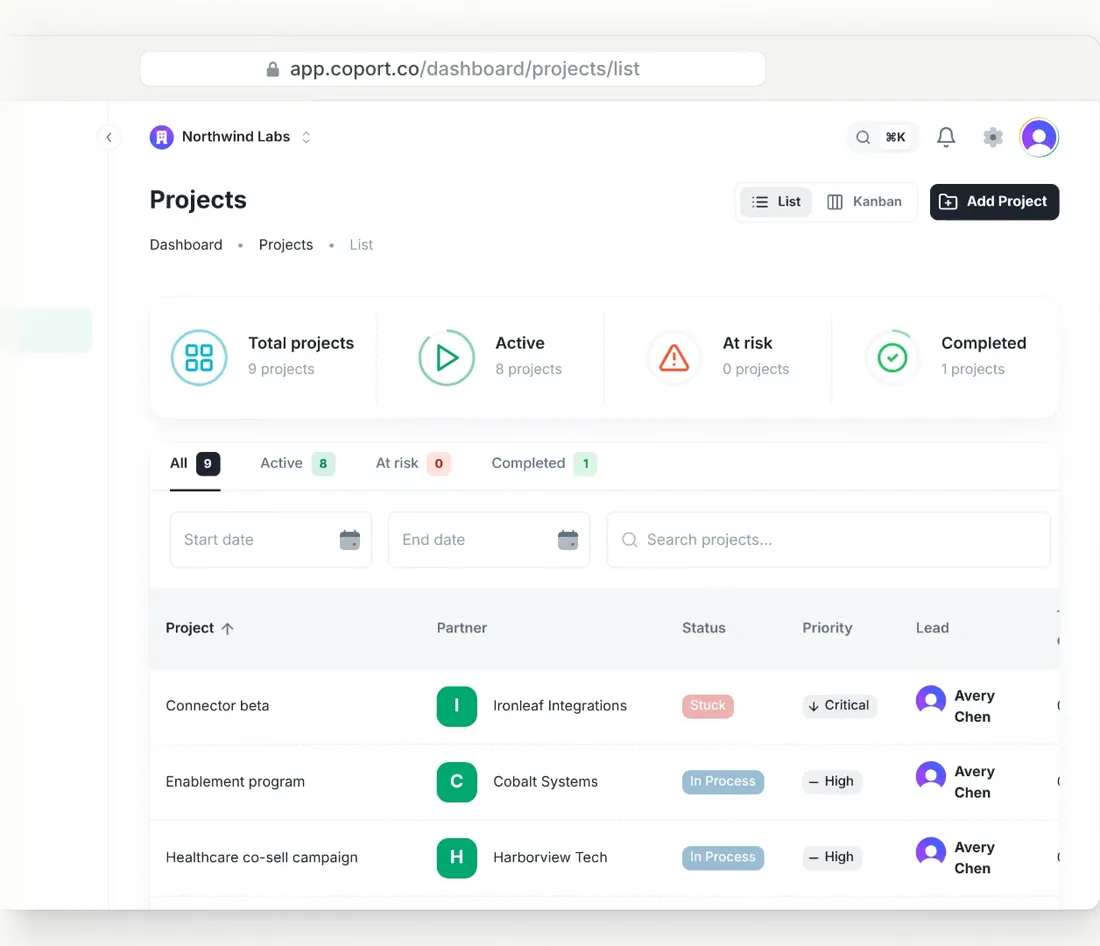
Click Projects in the left sidebar. Onboarding, campaigns and launches each have one project. The page shows totals for Total projects, Active, At risk and Completed.
2. Add a project
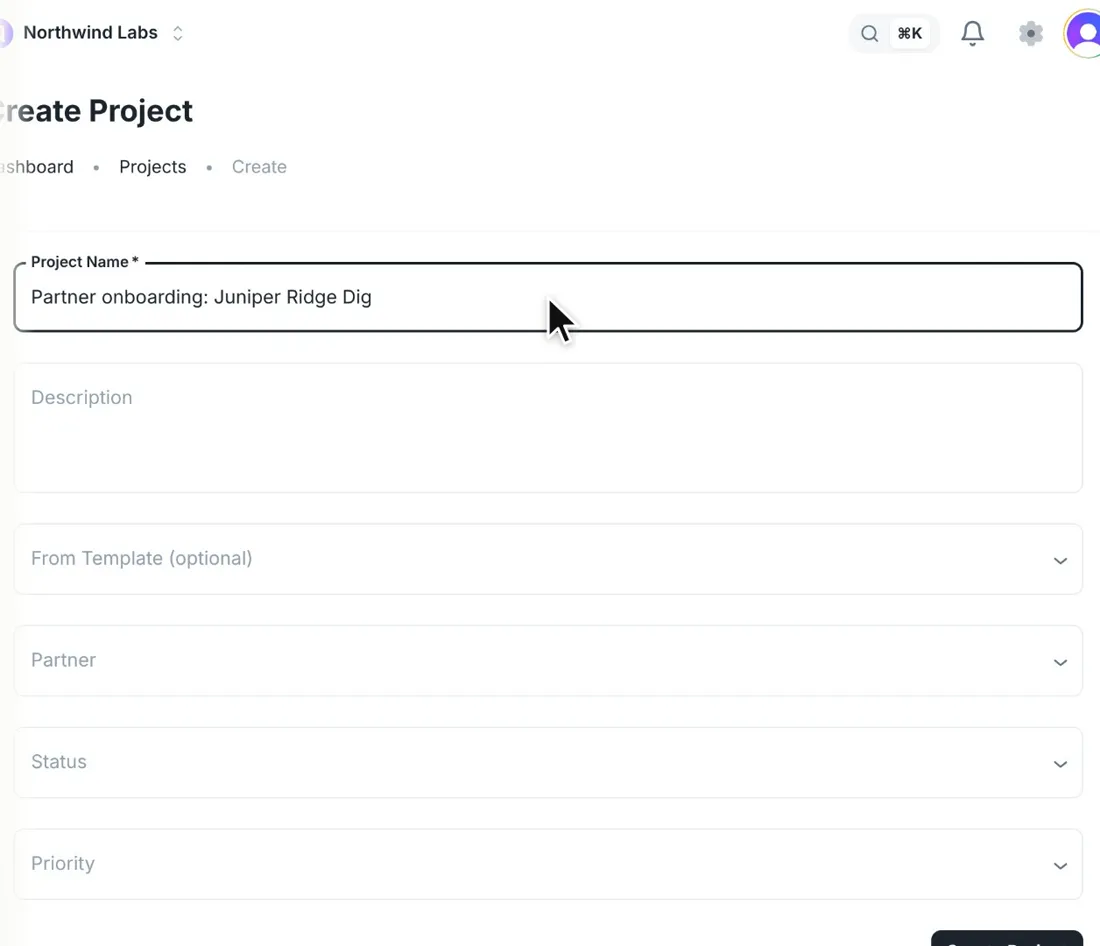
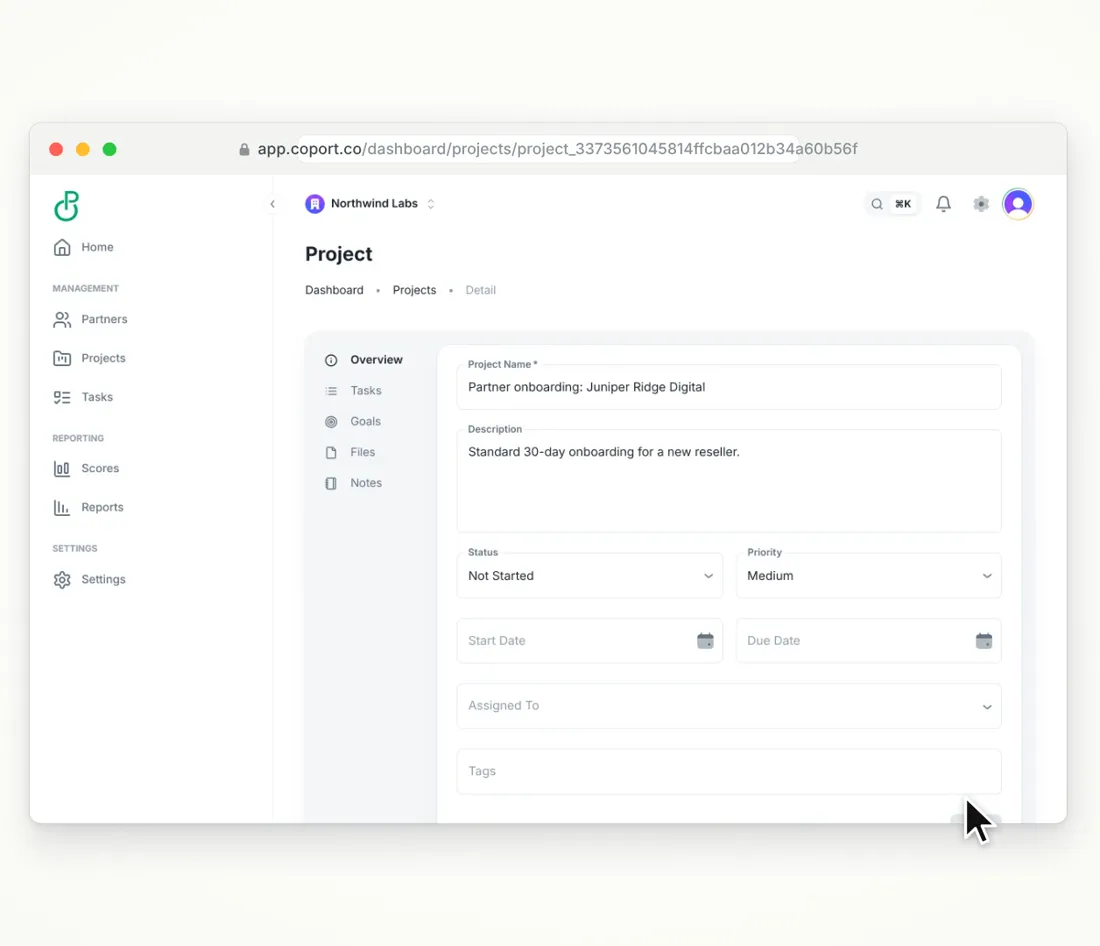
Click Add Project. On the Create Project page, enter a Project Name. Name it after the partner and the goal. The example is "Partner onboarding: Juniper Ridge Digital".
3. Start from a template
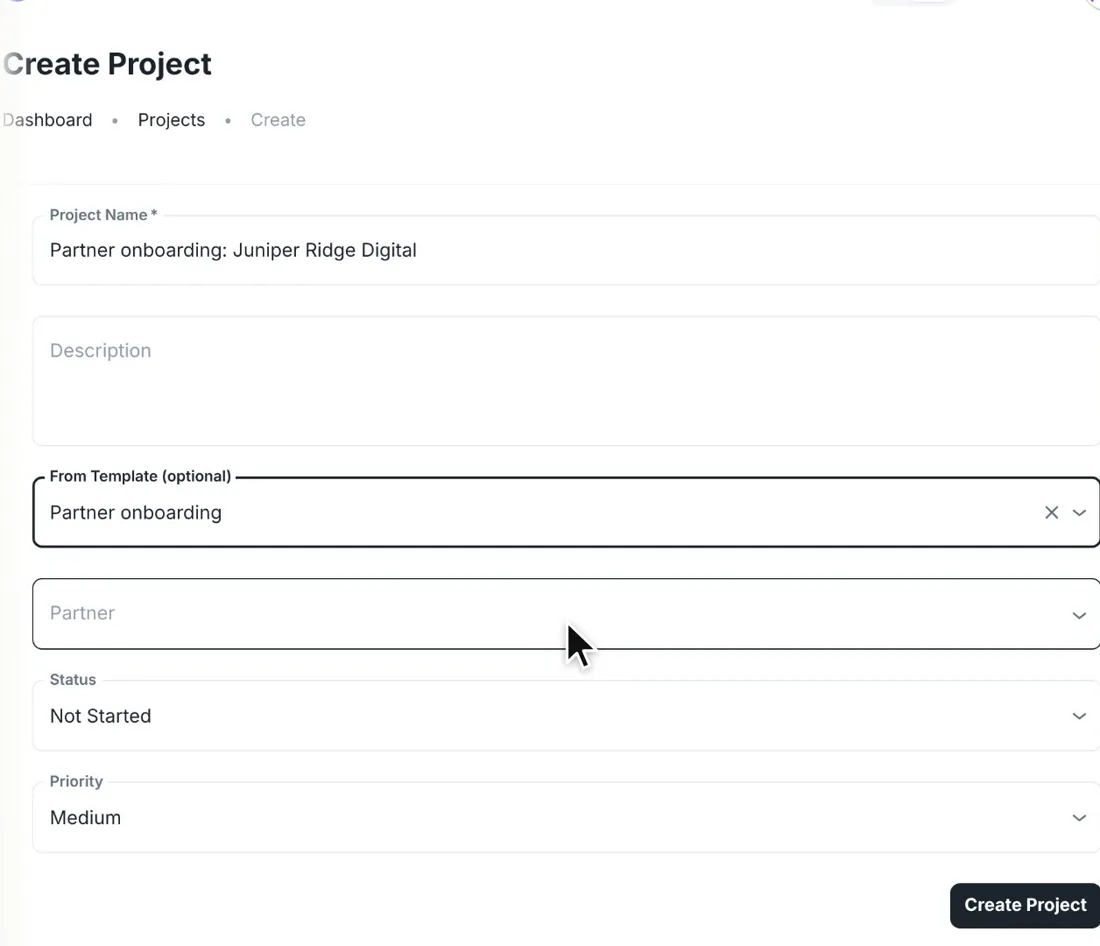
Open From Template (optional) and choose a template, such as Partner onboarding. The template brings its tasks and default status.
4. Choose the partner and priority
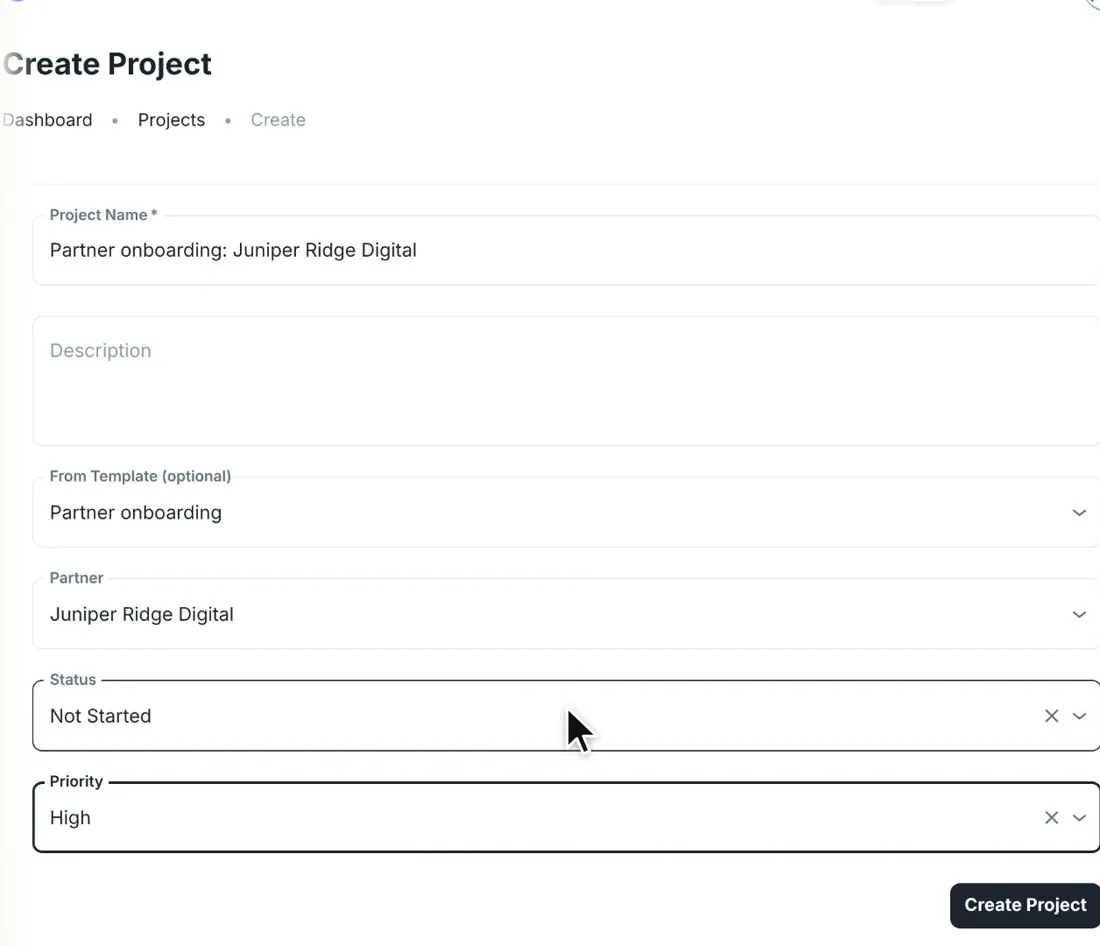
Select the Partner. Every project belongs to one partner. Then set the Priority: Low, Medium, High or Critical. Status defaults to Not Started.
5. Create it
Click Create Project. The project opens, and the template's tasks are added with their due dates. The project's description comes from the template, for example "Standard 30-day onboarding for a new reseller."
6. Work the plan
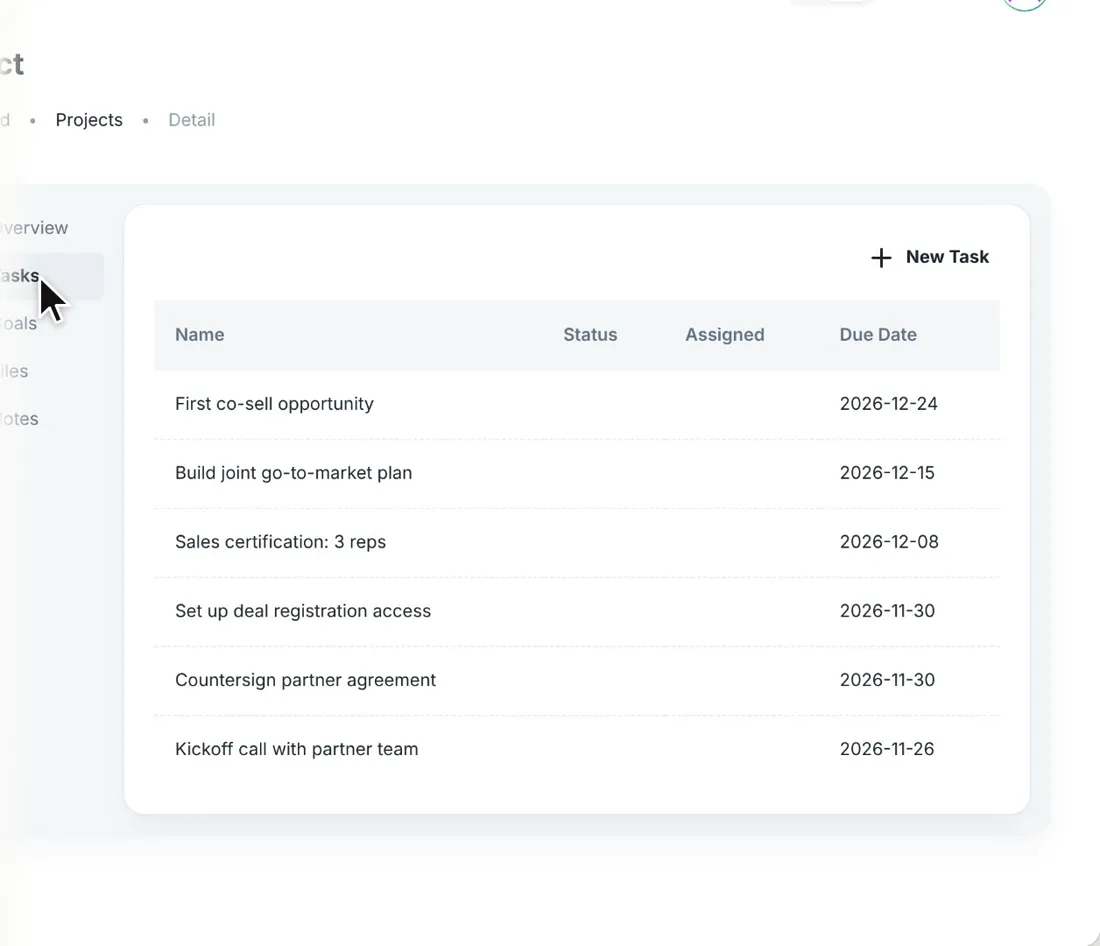
Open the project's Tasks to assign tasks and track progress. The example plan lists tasks such as "Kickoff call with partner team", "Countersign partner agreement", "Set up deal registration access", "Sales certification: 3 reps", "Build joint go-to-market plan" and "First co-sell opportunity", each with a due date.
What you should see
A new project belonging to the partner you chose, with every task from the template and its due date already in the Tasks list.
Frequently asked questions
Do I need a template to create a project in CoPort?
No. The From Template field is optional. Without a template you create an empty project and add tasks yourself.
What does a template add to a new project?
The template's tasks, with their due dates, and its default status.
Can a project belong to more than one partner?
No. Every project belongs to one partner.
Using an AI assistant? This guide is available as plain Markdown at /docs/start-a-project-from-a-template.md, and every guide is indexed at /llms.txt.
Next guideMove projects across the board